HomeBlogeinzly Features
einzly Features

Create a QR invoice with einzly — in under 2 minutes

QR invoices are part of everyday business in Switzerland. Yet many self-employed professionals struggle with separate software, manual data entry, and error-prone processes. einzly takes a different approach: select a client, add line items, auto-generate the QR code — done. In this article, we show you step by step how it works.

e
einzly Redaktion
Tax & Finance Editorial · einzly
6 min read
7 Mar 2026
Related topics
QR invoiceeinzlyInvoicing

01Why automate QR invoices?

Since 2022, the Swiss QR invoice has been the official payment standard in Switzerland. The QR code contains all payment details — IBAN, amount, reference number — and can be scanned with any banking app. Sounds simple, yet in practice it means extra work for many self-employed professionals.

If you create your invoices in Word or Excel, you need separate software for the QR payment slip. Data must be entered twice, typos in the IBAN lead to failed payments, and the result often looks unprofessional.

What is a QR invoice?The Swiss QR invoice is the official successor to the old payment slips. It contains a QR code with all payment details following the SIX standard. The recipient scans the code with their banking app and can trigger the payment in one click.

The most common problems when creating QR invoices manually:

  • Separate QR software needed, often incompatible with your invoicing tool
  • Double data entry — client details, amounts, and IBAN transferred manually
  • Typos in IBAN or reference number lead to payment issues
  • QR payment slip and invoice don't match visually
  • No automatic reconciliation between invoice and payment

einzly solves all these problems by integrating the QR invoice directly into the invoicing process. No additional software, no double entry, no source of errors.


02How it works in einzly — 4 steps to a QR invoice

From a blank invoice to a ready-to-send QR invoice takes less than 2 minutes in einzly. Here's the process:

Step 1: Select a client

Choose an existing client from your contact list or create a new one. Name, address, and email are automatically added to the invoice — no retyping, no errors.
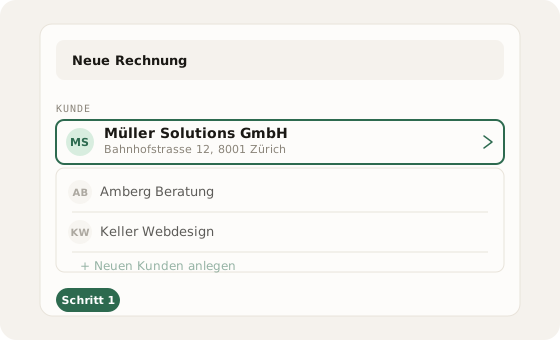
einzly invoice form: client dropdown with selection and option to create new client
Select a client from your contact list or create a new one

Step 2: Add line items

Add services or products as individual line items. Quantity, unit, and unit price — einzly calculates the total automatically. If you're VAT-registered, the tax is also added automatically.
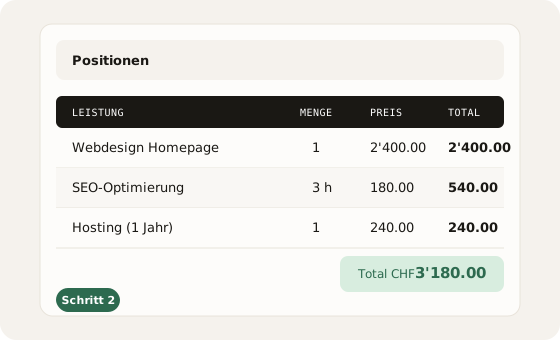
einzly line items table with three service rows and automatic total calculation
Line items with quantity, price, and automatic total calculation

Step 3: Preview the QR invoice

In the live preview, you can see how the finished invoice will look to your client — including the QR payment slip at the bottom. The QR code is generated automatically from your IBAN, reference number, and invoice amount. Everything follows the SIX standard.
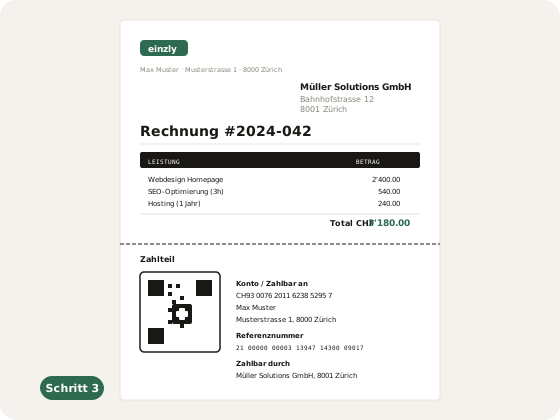
PDF preview of an einzly invoice with Swiss QR payment slip and auto-generated QR code
Finished invoice with auto-generated Swiss QR payment slip

Step 4: Send or export

Send the invoice directly by email from einzly — or download it as a PDF. When sending by email, your client receives a secure link to the invoice with status tracking and a QR code to scan.
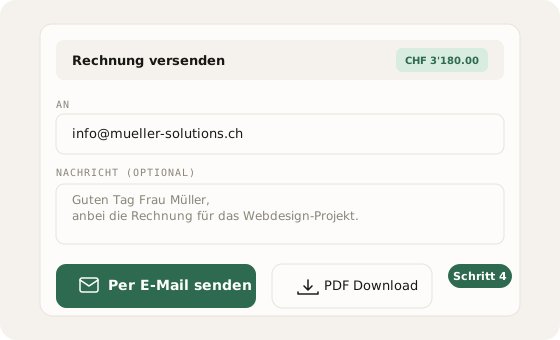
einzly send dialog with email address, optional message, and send button
Send by email or export as PDF — in one click


03What einzly automates for you

Behind those four steps lies a lot of automation. Here's an overview of what einzly handles in the background:

QR reference numberEvery invoice automatically receives a unique QR reference number (QRR). This allows your bank to match incoming payments to the correct invoice — without manual reconciliation.
IBAN validationeinzly validates your IBAN during profile setup and automatically removes spaces and invalid characters. This ensures the QR code always contains a correct IBAN following the SIX standard.
VAT calculationIf you're VAT-registered, einzly calculates the tax automatically based on your stored rate. The VAT amount appears separately on the invoice — fully compliant with Swiss law.
Letterhead & brandingYour logo and accent colour are automatically applied to every invoice. The result is a professional, consistent appearance — no design skills needed.
Multilingual supporteinzly creates invoices in German, French, Italian, and English. All labels, texts, and the QR payment slip are automatically displayed in your client's language.


04Comparison: Manual vs. einzly

How much time and effort do you save with einzly compared to the manual process? Here's the comparison:

CriterionManualeinzly
Time per invoice15–20 minutes< 2 minutes
QR code generationSeparate softwareAutomatically integrated
IBAN entryManual, error-proneTaken from profile
Reference numberCreate manuallyAuto-generated
VAT calculationCalculate manuallyAutomatic
BrandingLimitedLogo + accent colour
SendingPDF by emailDirect from einzly + tracking
Error riskHighMinimal
Quick calculationWith 10 invoices per month, you save around 15 minutes per invoice with einzly — that's over 30 hours a year. Almost an entire working week you can invest in your core business.


05Frequently asked questions

No. einzly generates the Swiss QR code automatically from your profile data and invoice details. No installation, no plugin, no extra effort.
einzly supports all Swiss IBANs (CH and LI). The IBAN is validated during profile setup and automatically formatted — spaces and invalid characters are removed.
The QR payment slip is only generated for invoices in CHF. For invoices in other currencies (e.g. EUR), no QR code is generated, as the Swiss QR standard only supports CHF and EUR via a CH-IBAN.
Yes. einzly generates QR invoices fully in accordance with the current SIX standard. This includes the correct QR code structure, the reference number in QRR format, and the properly formatted payment slip.
Share