01Why Import Customers?
Switching from Banana, bexio, Magic Heidi or another tool to einzly? Then you probably already have dozens or hundreds of customers on file. Retyping them all manually would be a waste of time — and error-prone.
The CSV import in einzly solves exactly this problem. Export your customer list from your current tool as a CSV file, upload it, and einzly takes over the data automatically. No retyping, no copy-paste, no stress.
If you're new to einzly: it's an accounting software for Swiss self-employed professionals that combines invoices, quotes, expenses and bookkeeping in one tool.
02How to Prepare Your CSV File
For the import to work smoothly, your CSV file should contain specific columns. Here's the overview:
| Column Name | Description | Required? |
|---|---|---|
| firma_name | Company name or customer name | Yes |
| kontakt_person | First name and last name in one field | No |
| Email address | No | |
| adresse_co | c/o address line, e.g. "c/o Mueller Trust AG" | No |
| adresse_strasse | Street name | No |
| adresse_nr | House number | No |
| adresse_plz | Postal code | No |
| adresse_ort | City / town | No |
| adresse_land | Country code (e.g. CH, DE, AT) | No |
Only the firma_name field is mandatory. All other fields are optional — whatever is present will be imported, whatever is missing can be added later.
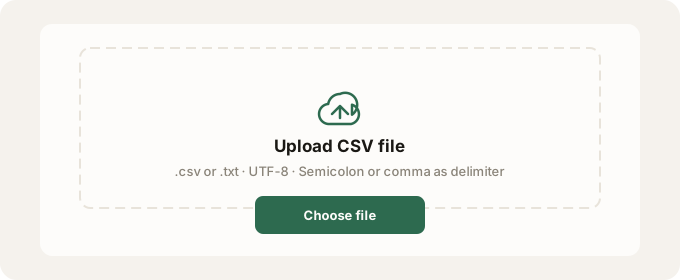
As for the format: the delimiter can be a semicolon (;) or comma (,) — einzly detects it automatically. The file must be encoded in UTF-8. Accepted file types are .csv and .txt.
Template with all columns — just fill in and import
03Step by Step: Import in einzly
Step 1 — Upload CSV
Navigate to the Customers section in einzly and click the Import button. The upload dialog opens. Select your CSV file or drag and drop it into the upload area.
Step 2 — Map Columns
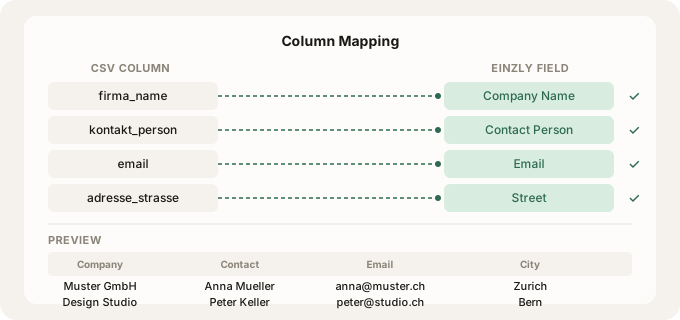
After the upload, einzly analyses your CSV column headers and automatically maps them to the matching einzly fields. In the preview you can see which columns were detected and what the first rows look like. If a mapping is incorrect, you can adjust it manually.
Step 3 — Confirm Import
In the final step you see how many rows are valid and will be imported. Click Import — and your customers are available in einzly. You can immediately use them for invoices and quotes.
04Export from Other Tools
From Banana
In Banana Accounting you can find the contacts export under Data > Export table. Choose CSV format and make sure UTF-8 is set as the character encoding. Then adjust the column headers to match the einzly fields — or use the preview during import to map them manually. More about switching can be found on the Banana alternative page.
From bexio
In bexio you can download contacts under Contacts > Export as CSV. The bexio CSV uses a semicolon as delimiter — einzly detects this automatically. Make sure the contact person is exported as one field (first name + last name). Details about switching can be found on the bexio alternative page.
From Excel / Numbers
If you maintain your customers in an Excel or Numbers spreadsheet, simply save it as a CSV file (File > Export > CSV). Make sure to use the correct column order and UTF-8 encoding. Easiest approach: download our CSV template, fill it in and import it.