01Why Automate Expenses?
As a sole proprietor, you have recurring costs every month: office rent, web hosting, cloud storage, software licences, phone plans, insurance premiums. These amounts rarely change — but they still need to be recorded in your accounting every month.
The problem: When you manually enter the same expenses month after month, you'll eventually forget one, mistype an amount or pick the wrong category. By year-end, bookings are missing and your income and expense statement doesn't add up.
The solution: Set it up once, then it runs automatically. einzly creates the expense every month with the same details — supplier, amount, category, VAT rate, payment method and booking text. You stay on top of things without having to remember each month.
02How to Set Up a Recurring Expense
Setup takes less than a minute. You create the expense as usual and additionally activate a checkbox.
Step 1 — Create the Expense
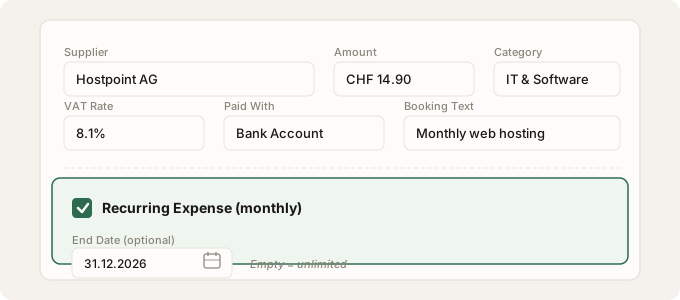
Open the expense form and fill in the fields: supplier (e.g. Hostpoint AG), amount (e.g. CHF 14.90), category (e.g. IT & Software), VAT rate, payment method and an optional booking text. This works exactly the same as a regular expense.
Step 2 — Activate the Checkbox
Below the regular fields, you'll find the checkbox "Recurring Expense (monthly)". Activate it — einzly will then create the expense not just once, but automatically every month.
Step 3 — Set an End Date (Optional)
If you know when the expense ends (e.g. an annual contract until 31.12.2026), you can set an end date. If you leave the field empty, the automation runs indefinitely — until you manually stop it.
03What Happens Next?
After setup, einzly works in the background. Every month, a new expense is automatically created with the same details — same supplier, same amount, same category, same VAT rate.
You can recognise automatically created expenses by the "Auto" badge in the expense list. This way, you can see at a glance which bookings were created manually and which were generated automatically.
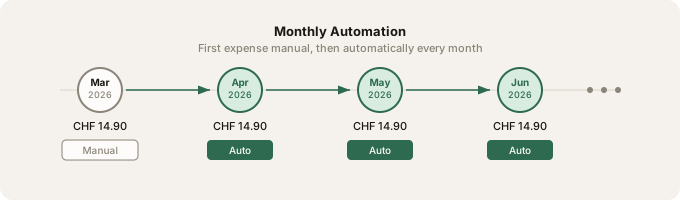
The automatic expenses appear in your regular expense list and flow into your VAT return and year-end closing as usual. You don't need to do anything extra.
04Manage: Stop, Activate, Delete
In the expense dashboard, you'll find a dedicated section for recurring expenses — recognisable by the cycle icon. Here you can see all active and stopped templates at a glance.
Each template offers three actions:
- Stop — Pauses the automation. Already created expenses remain in your accounting. The template switches to "Stopped" status.
- Activate — Reactivates a stopped template. The next execution is set to the following month. Useful for seasonal costs or after a contract pause.
- Delete — Removes the template completely. Only possible for stopped templates. Already created expenses are preserved.
05Which Expenses Are Suitable?
Any expense that occurs monthly at the same amount is a good candidate. Here are the most common examples for self-employed professionals in Switzerland:
- Office rent or coworking space
- Web hosting and domain fees (e.g. Hostpoint, Infomaniak)
- Software subscriptions (e.g. Adobe Creative Cloud, Microsoft 365, Figma)
- Insurance premiums (professional liability, legal protection)
- Phone plan and mobile subscription
- Cloud storage (e.g. Google Workspace, Dropbox Business)
- Accounting software (einzly!)
- Project management tools (e.g. Notion, Asana)
Not suitable are expenses with varying amounts — for example material costs that differ from project to project. For those, you continue to create each booking individually.